
Turn Any Link or Text Into a QR Code Instantly
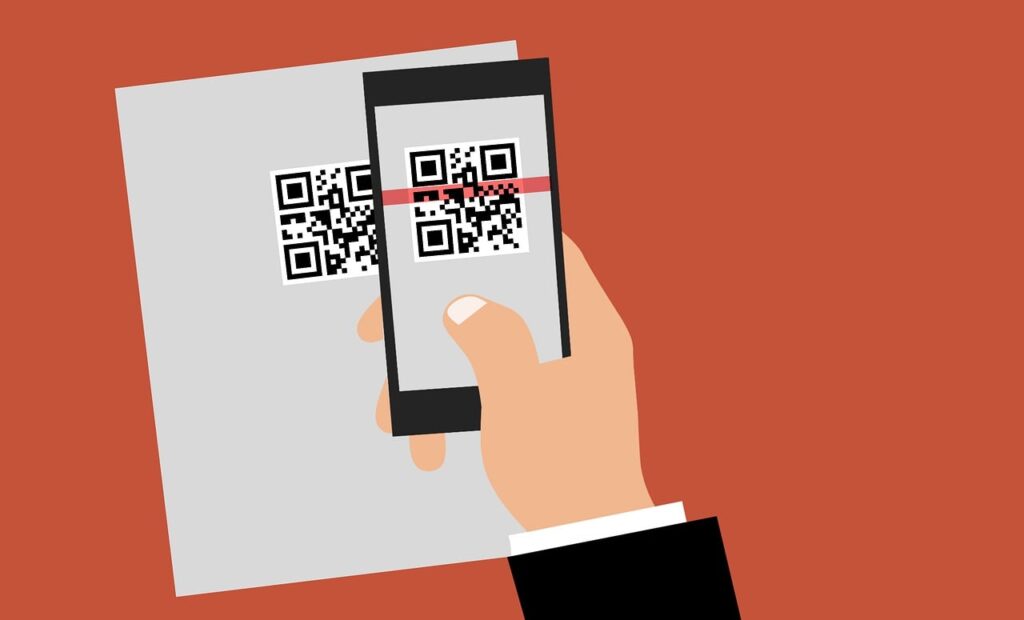
QR codes now appear on restaurant menus, payment links, posters, product boxes and the router in a guest room. Our free QR Code Generator makes one from a web address or a piece of text in your browser, with no sign-up. This guide explains how QR codes work and how to make one that scans reliably.
How a QR code works
A QR (Quick Response) code is a two-dimensional barcode. Black and white squares, called modules, encode data in a grid that a phone camera reads in a fraction of a second. Three square markers in the corners tell the scanner which way up the code is and how big it is.
Every code also carries extra, repeated data for error correction. If part of the code is dirty, scratched or covered, the scanner can often still rebuild the message. There are four levels:
| Level | Damage it can recover from (approx.) |
|---|---|
| L | 7% |
| M | 15% |
| Q | 25% |
| H | 30% |
Higher levels recover more damage but make the code denser, so the squares get smaller. For a code that will be printed small, a lower level with a short message is usually easier to scan than a high level with a long one.
How much a QR code can hold
The largest QR code can store about 7,000 digits, about 4,300 letters and numbers, or about 2,900 bytes of general text. Real use is far below that. The shorter your text or link, the simpler and easier to scan the code. A short link produces a clean, bold pattern. A very long link with tracking parameters produces a dense one that cameras struggle with at small sizes.
Common uses
- Business cards and flyers: link to your website, portfolio or contact page.
- Menus: put a code on the table so customers can open a digital menu.
- Events: link posters and invitations to the event page, a map or an RSVP form.
- Product packaging: point to instructions, warranty registration or support.
- Wi-Fi sharing: many phones can join a network from a code that holds text in this format:
WIFI:T:WPA;S:YourNetworkName;P:YourPassword;;. Replace the name and password with your own, and test it on your phone first. Support varies slightly between phone models.
How to make a QR code
- Enter the web address or text you want the code to hold.
- Generate the code. It appears immediately.
- Download it and add it to your design.
The code is built in your browser, so you don’t need an account, and what you type isn’t sent to a server for the code itself.
Before you print: a checklist
- Test with real phones. Scan it with at least two different phones, ideally one iPhone and one Android, before printing anything permanent.
- Keep strong contrast. Dark squares on a light background scan best. Avoid pale colours, and don’t invert the code (light on dark), because some scanners can’t read it.
- Leave a blank border. Keep a clear margin around the code, at least the width of four small squares. Text or images touching the code can stop it scanning.
- Print it big enough. As a rough guide, make it at least 2 cm (about 0.8 inch) across for close-up scanning. For a poster, scale it up with the distance. A code about one-tenth as wide as the distance it will be scanned from is a common rule of thumb.
- Don’t stretch it. Keep the proportions square.
- Check where it goes. Make sure the link works on a phone and isn’t going to a page that needs a login.
Static codes can’t be edited
The code you create here holds your text or link directly. If the link changes later, the printed code still points to the old one. For anything printed in bulk, such as packaging or signs, link to a page you control and can update.
Staying safe when scanning
A QR code can hide where it leads, so look at the preview your phone shows before you open a link. Be careful with codes stuck on top of other codes in public places, and with codes that ask for payment or login details. If you are unsure, type the website address yourself.
Frequently asked questions
Does a QR code expire? A code made this way doesn’t expire, because the data is in the image itself. It stops being useful only if the page it points to disappears.
Can I put a logo in the middle? A small logo can work if you use a higher error-correction level, but always test the result before printing.
Why won’t my code scan? The usual causes are low contrast, a code that is too small, too little blank border, or a message so long that the squares are tiny. Shorten the link and try again.
Is there a limit on how many I can make? No
Make your code